Crop images online for free
Crop images online for free by dragging a frame around the area you want to keep. Choose a free crop or lock the shape to a square, 4:3 or 16:9. Preview the result and download a new copy. Your photo stays in your browser, with no signup needed.
Your workspace CROP · PREVIEW · DOWNLOADPrivate by default
Drag the frame on the photo, or the corners to resize it. Arrow keys nudge it.
Processed on your deviceNo watermark. No signup.
Cropping and resizing are different jobs
The main difference between cropping and resizing is what happens to the picture: cropping removes the edges you do not need, while resizing changes pixel dimensions.
Cropping can make a subject fill more of the frame, but neither operation recovers missing detail.
When you need both, crop first and resize second.
Cropping after a resize throws away pixels you already paid for by scaling, and the result is softer than doing it the other way round for no benefit at all.
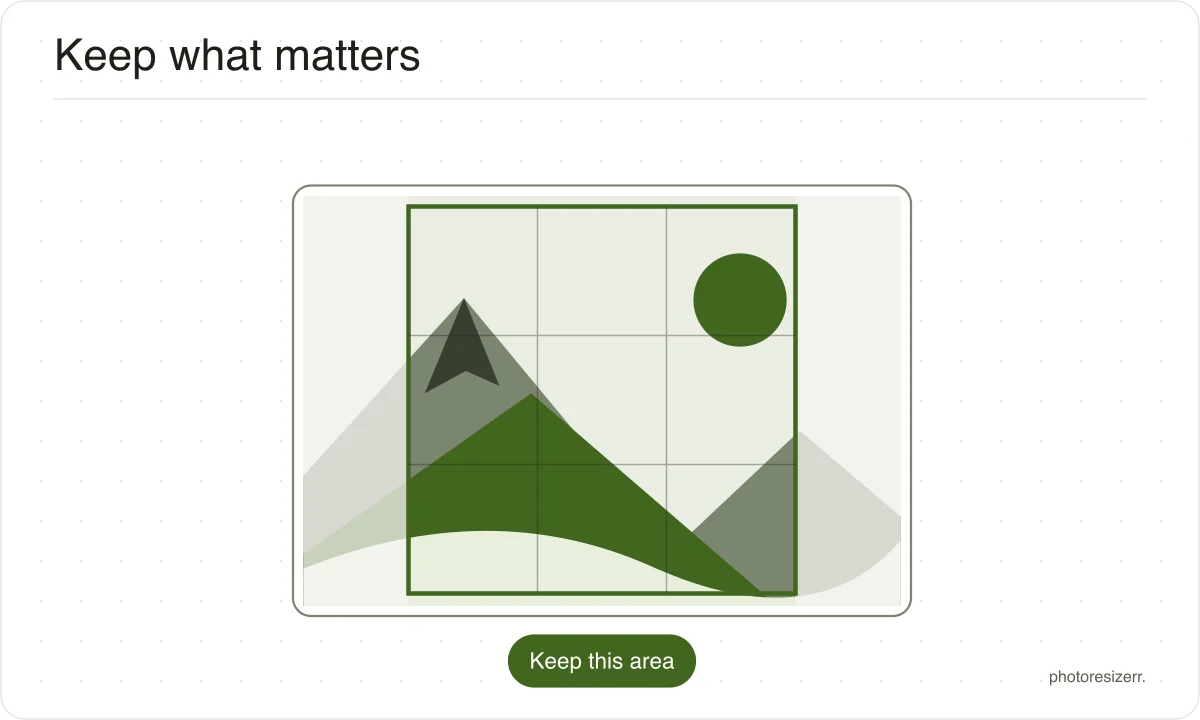
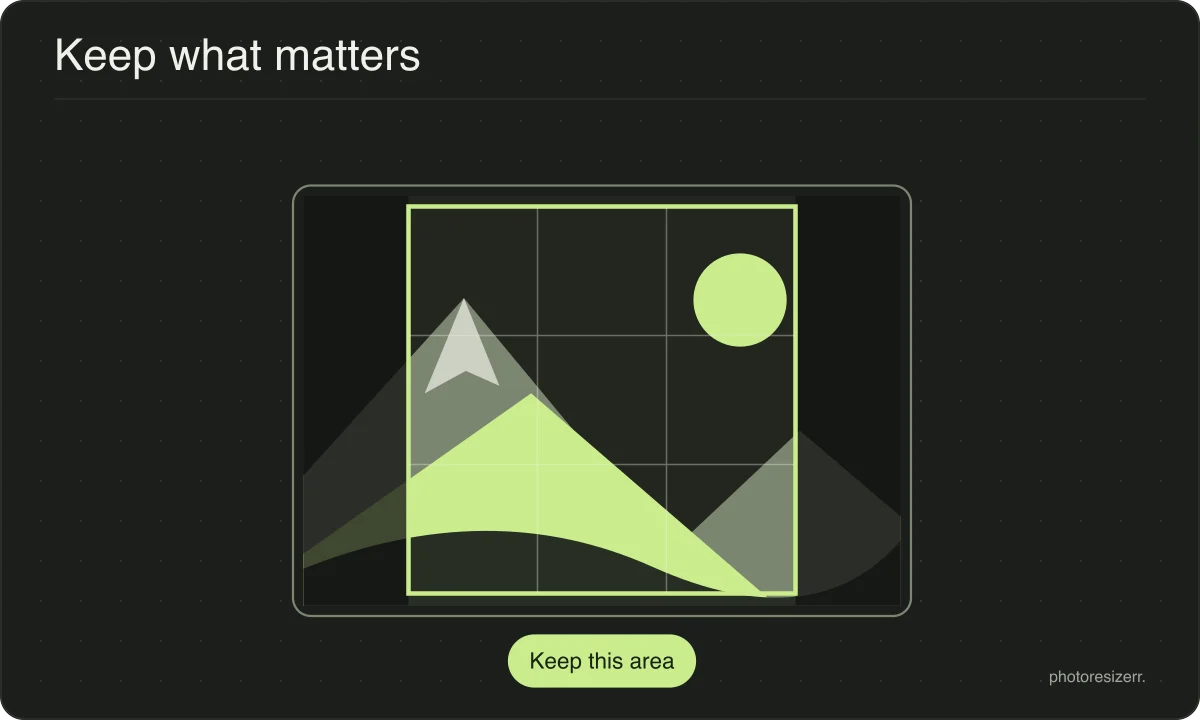
Cropping to an exact shape
The shape buttons lock the frame to a ratio, so it can be dragged anywhere and stay square, or stay 16:9, without any measuring.
That is the control you want when something downstream demands a shape: a profile picture, a video thumbnail, a photo that has to sit in a fixed box on a page.
For an exact pixel size rather than an exact shape, crop to roughly the right region here and then switch to pixels and type the numbers.
The two work together, and the crop stays applied while you do it.
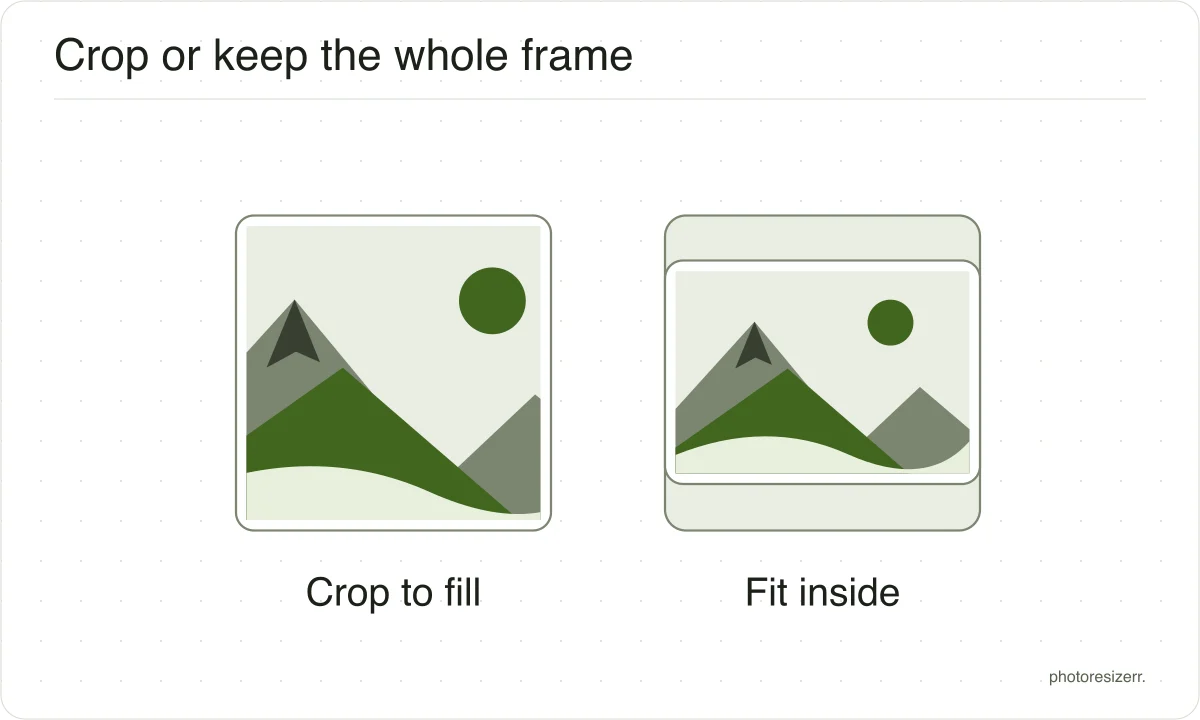
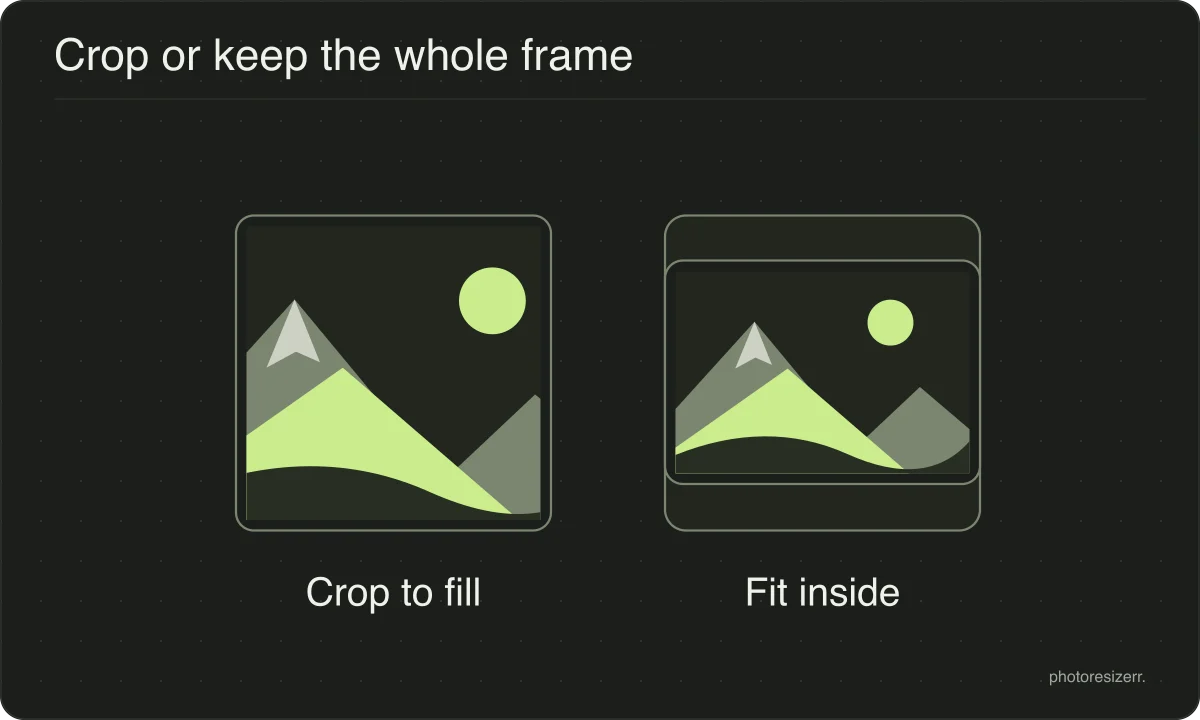
Does cropping lose quality?
The crop itself does not. Cutting a rectangle out of a picture copies those pixels unchanged, so nothing is averaged, blurred or resampled. What you keep is exactly what was there.
Saving it again is where loss can happen. Writing a JPEG re-encodes the whole image, so a photo cropped and saved several times will soften even though each crop was free.
Keep the quality high, or save as PNG when the file is going to be edited again.
What happens to your photo?
Your selected photo is processed in your browser, without an image upload to a server. The page may download code and codecs needed for editing.
Save your result before closing the tab; unsaved edits are kept in memory rather than in an online account.
Common questions
Does cropping reduce quality?
The crop itself does not. Cutting a rectangle out of a picture copies those pixels unchanged, so nothing is averaged or resampled.
Any loss comes from saving as JPEG afterwards, which re-encodes the whole image, so keep the quality high if the file will be edited again.
How do I crop a photo to a perfect square?
Press the 1:1 button, then drag the frame to the part you want. The frame stays square whichever corner you pull, so you can position it without measuring anything.
The readout under the photo shows the pixel size you will get.
Should I crop before or after resizing?
Crop first. Resizing spreads the detail across fewer pixels, and cropping after that throws away work the resize already did.
Cropping first means the pixels you keep are the originals, and the resize then measures the part you actually want.
Can I crop to an exact number of pixels?
Yes, in two steps. Drag the frame to roughly the region you want, then switch to pixels and type the width and height.
The crop stays applied, so the numbers describe the part you kept rather than the whole photo.
Last updated: